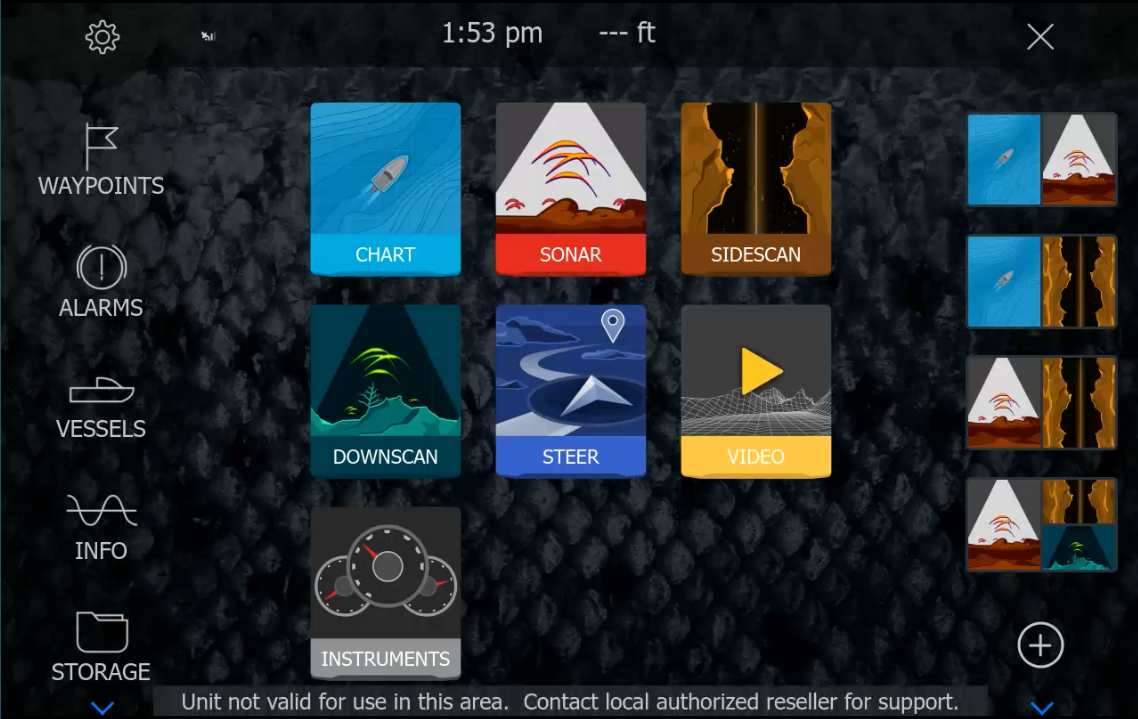
Lowrance GeoFence visual guide

How to find the GeoFence Request Code on Lowrance

Enable the hidden GeoFence dialog, copy the unique Request Code shown by the display and use a personal unlock code prepared for that same unit.

Quick answer

Where is the GeoFence Request Code?

On a compatible Lowrance display, open Settings → System → Advanced → User interface and switch Show geoFence unlock dialog to ON. Return to System, open Disable GeoFencing and copy the Request Code shown in the dialog.

Settings → System → Advanced → User interface → Show geoFence unlock dialog → Disable GeoFencing

Lowrance screen displaying Unit not valid for use in this area
The regional warning may remain visible until a compatible GeoFence restriction is removed.

Step-by-step

Find the code on the display

The menu wording can differ slightly between software versions, but the route and the device-specific Request Code follow the same logic on supported Lowrance models.

01

Open Settings → System

Select the gear icon on the home screen, then open System. A restricted unit can show “Unit not valid for use in this area” along the bottom of the screen.
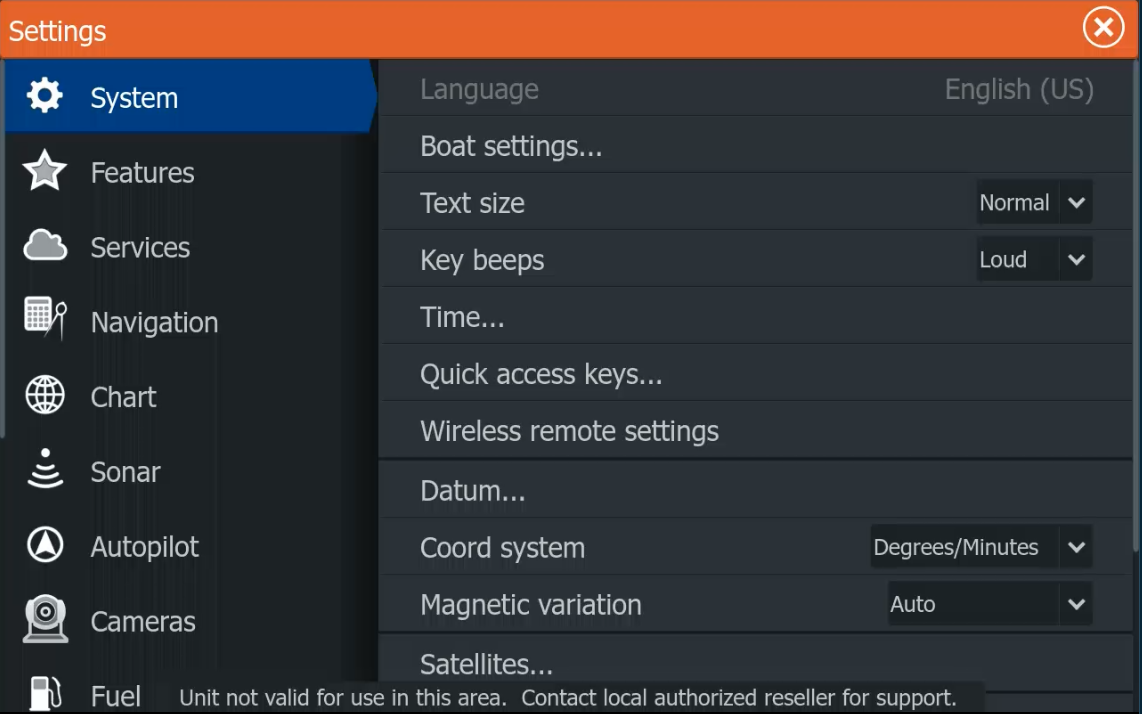
Lowrance System settings with GeoFence regional warning
Open System from the Settings menu.
02

Scroll down to Advanced

Move down through the System options and select Advanced….
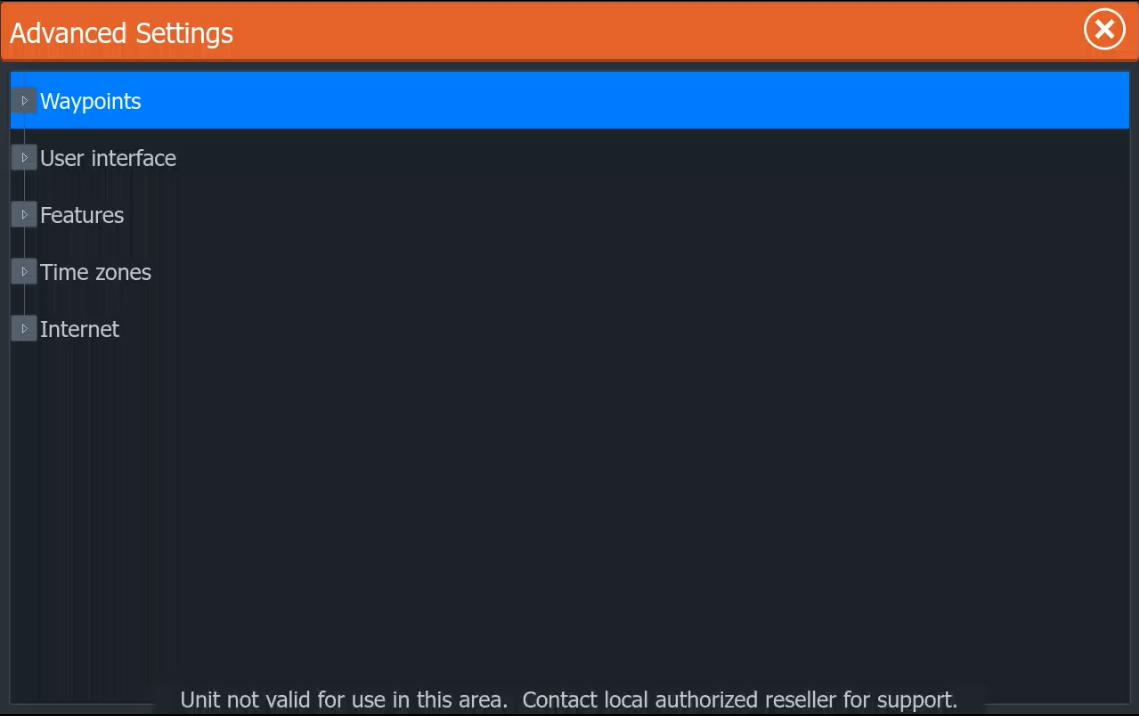
Advanced option in Lowrance System settings
Advanced appears near the bottom of the System list.
03

Open User interface

Expand User interface. Find Show geoFence unlock dialog; it can be set to OFF by default.
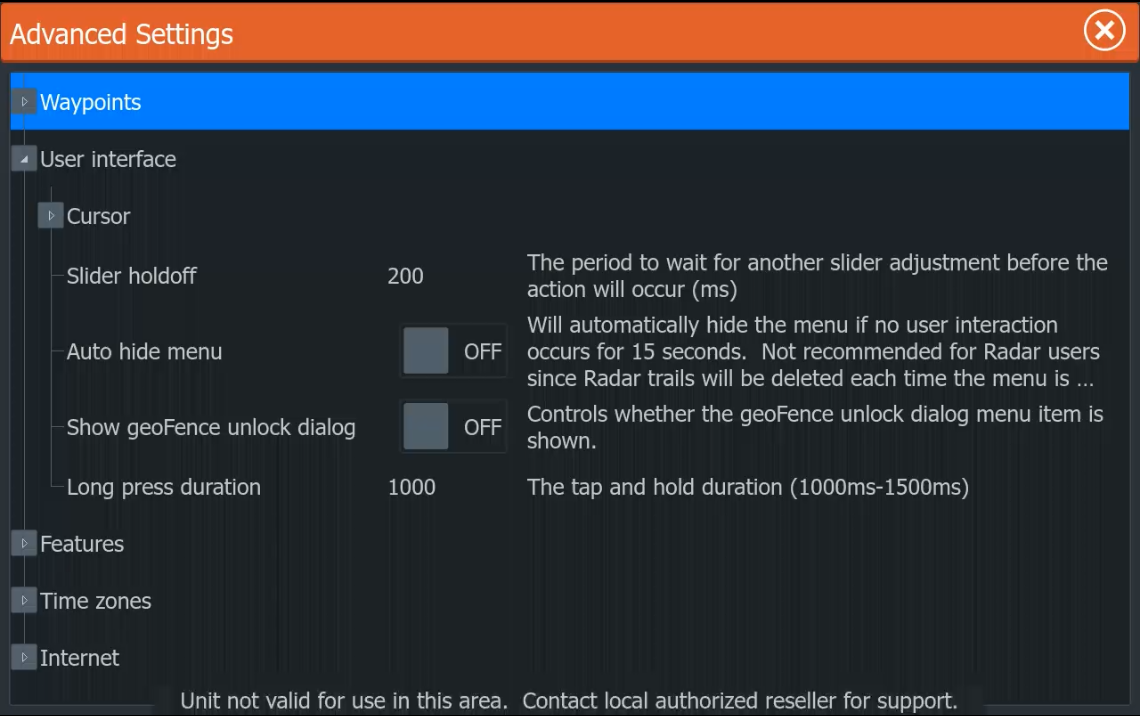
Show geoFence unlock dialog option set to off
Locate the GeoFence dialog setting inside User interface.
04

Switch the dialog to ON

Enable Show geoFence unlock dialog. This reveals the separate Disable GeoFencing item in the System menu.
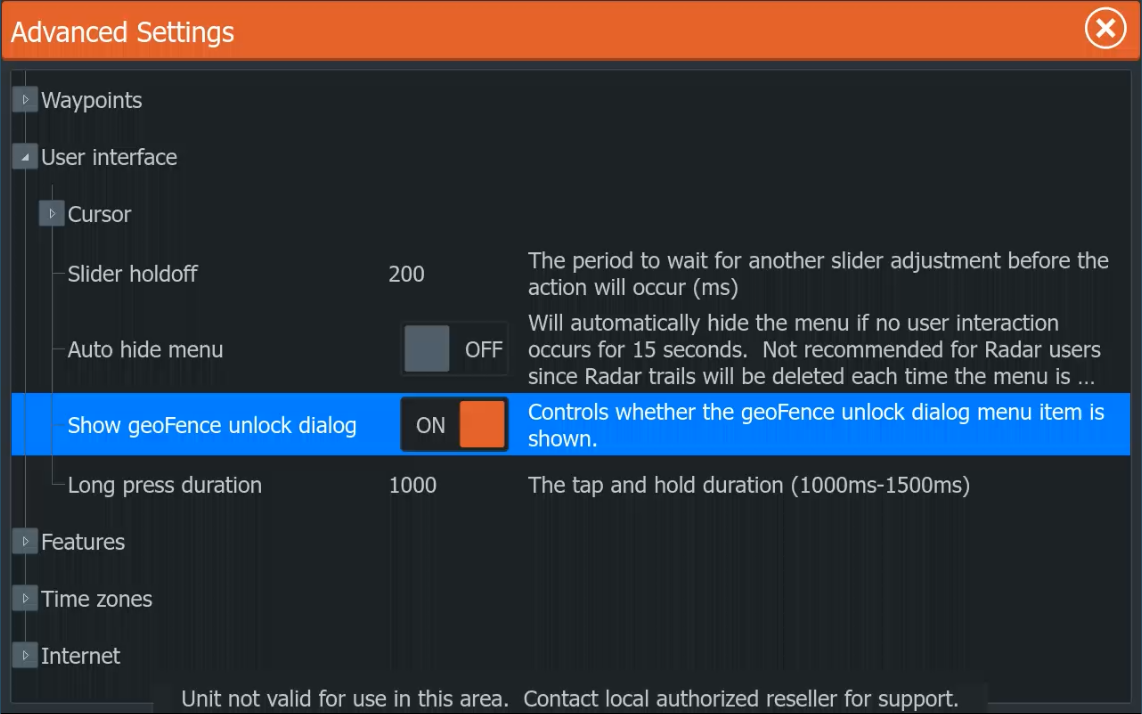
Show geoFence unlock dialog option enabled
The setting must show ON before the request dialog becomes available.
05

Open Disable GeoFencing

Return to System. Select the newly visible Disable GeoFencing option above Advanced.
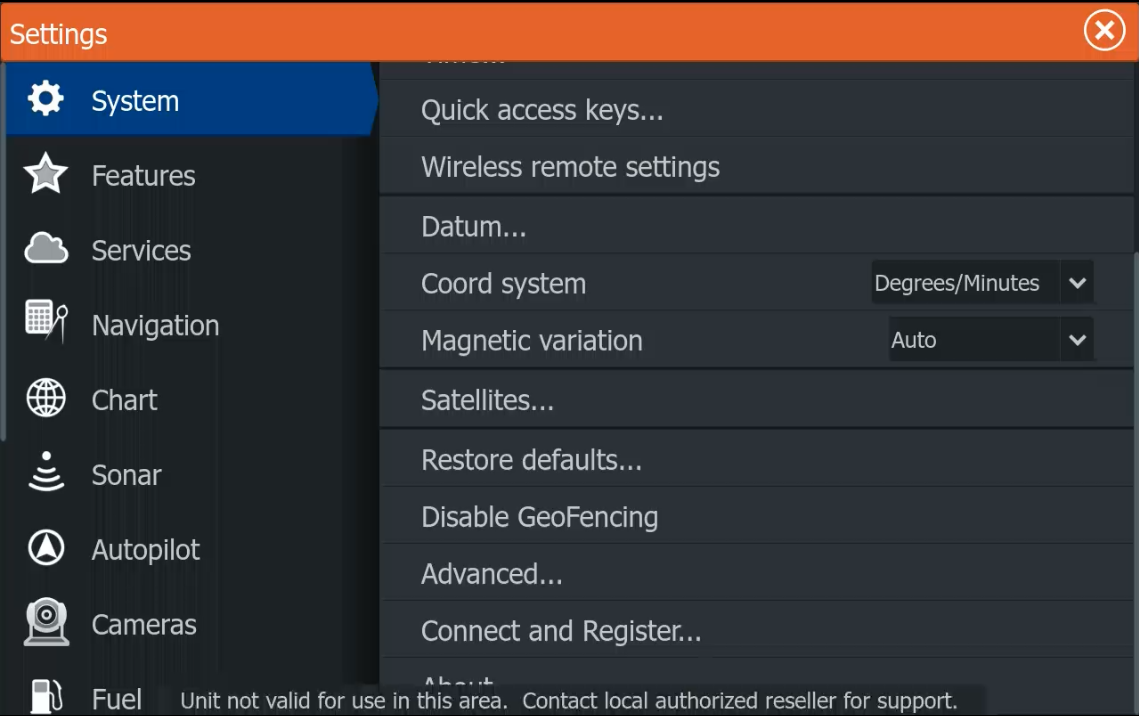
Disable GeoFencing menu item in Lowrance System settings
Open Disable GeoFencing to display the unit’s unique Request Code.
06

Copy the Request Code

Photograph the dialog or carefully copy the complete Request Code. Send it with the exact Lowrance model. Compatibility and price are confirmed before a personal code is prepared.
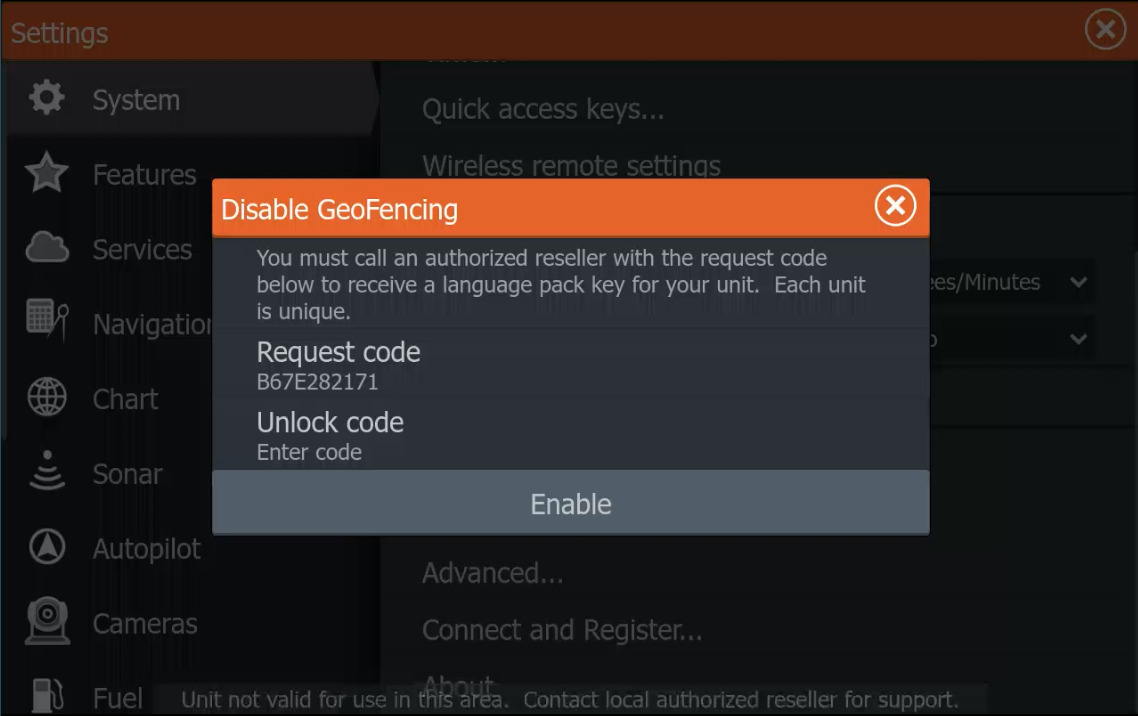
Lowrance Disable GeoFencing dialog showing Request Code
The Request Code identifies this individual display for the activation process.
07

Enter the personal unlock code

Select Unlock code, enter the code prepared for this Request Code and confirm the entry. A code from another unit will not match.
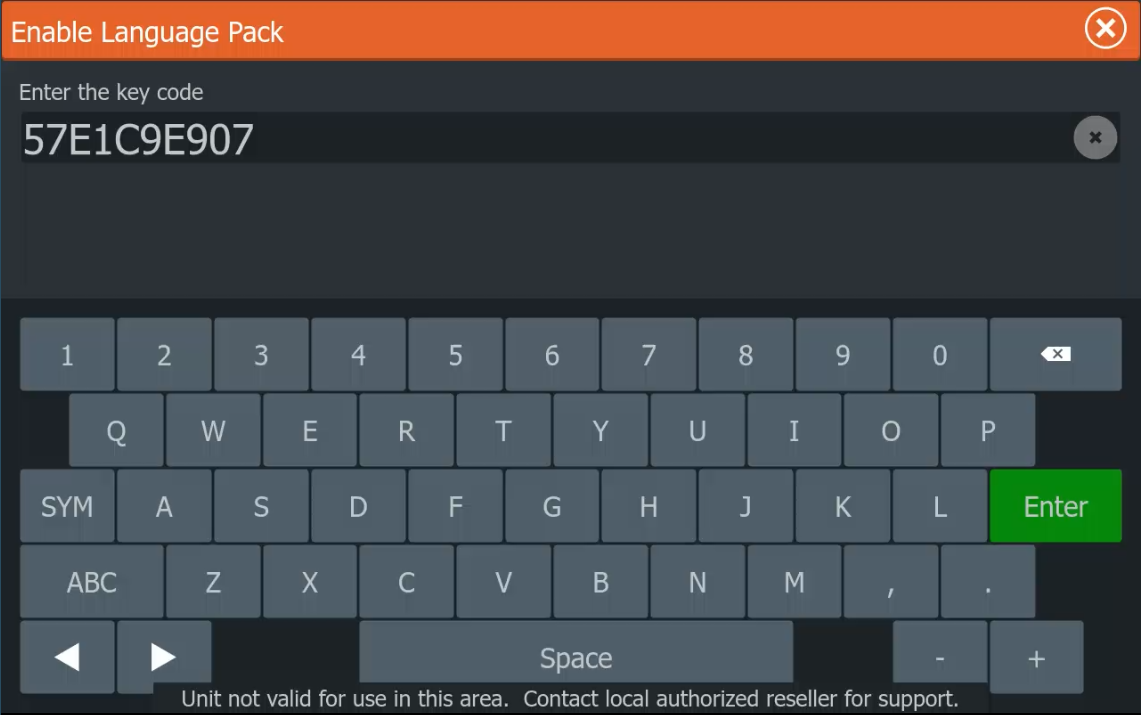
Lowrance on-screen keyboard for entering GeoFence unlock code
Enter every character exactly as supplied.
08

Select Enable

Check the entered code, then select Enable. If it matches the unit’s Request Code and the model is compatible, the regional restriction is removed.
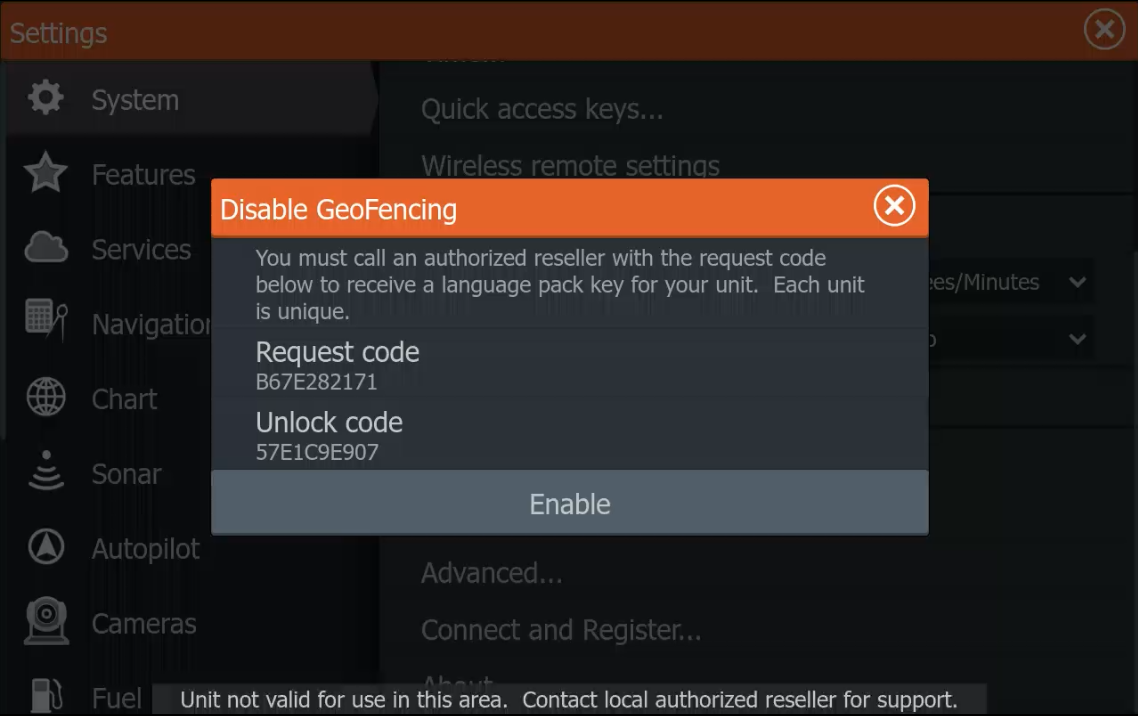
Lowrance GeoFence unlock code entered and Enable button ready
Select Enable only after checking the complete code.
GeoFence unlock and Language Pack activation are separate.Removing a compatible regional restriction does not automatically add Russian. Available languages depend on the active regional package; Russian Ukrainian Language Pack installation is a separate service.

Common questions

Before you send the code

These answers help separate GeoFence restrictions from language-package activation.

Why is Disable GeoFencing missing?

Open Settings → System → Advanced → User interface and switch Show geoFence unlock dialog to ON. Then return to System.

Can one unlock code be used on several displays?

No. The code must match the Request Code generated by the individual display.

Does GeoFence unlock add Russian?

No. GeoFence unlock and Russian Ukrainian Language Pack installation are separate services.

What should I send with the Request Code?

Send the exact Lowrance or Simrad model, software version, country of use, number of units and a clear photo or transcription of the Request Code.

Send the Request Code for a compatibility check

No payment is taken through the form. We first confirm the model, compatible result and price.

Open GeoFence request form